A few easy changes
It is time to customize Joyous to suit your needs. This tutorial will show some easy changes to make.
I will assume you already have Joyous installed and a calendar added. (See the first tutorial for details on that.)
Create an application to hold the customisations we are going to make. (If you already have one, then you can use that and skip this step.)
$ ./manage.py startapp myeventsAdd this application to your INSTALLED_APPS setting in mysite/mysite/settings/base.py
INSTALLED_APPS = [
    ...
    'myevents',
    ...
]
Settings
To start with let’s add some settings. These can go in mysite/mysite/settings/base.py.
JOYOUS_THEME_CSS = "/static/joyous/css/joyous_forest_theme.css"
JOYOUS_HOLIDAYS = "Scotland"
JOYOUS_DATE_FORMAT = "l jS \\o\\f F X"
JOYOUS_DATE_SHORT_FORMAT = "j M X"
JOYOUS_TIME_FORMAT = "fq"
JOYOUS_TIME_INPUT = "12"
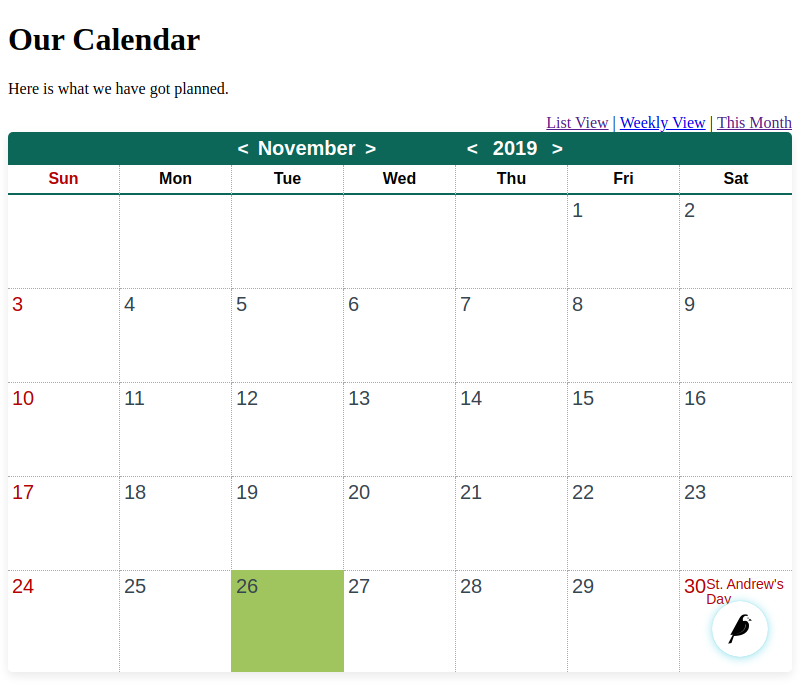
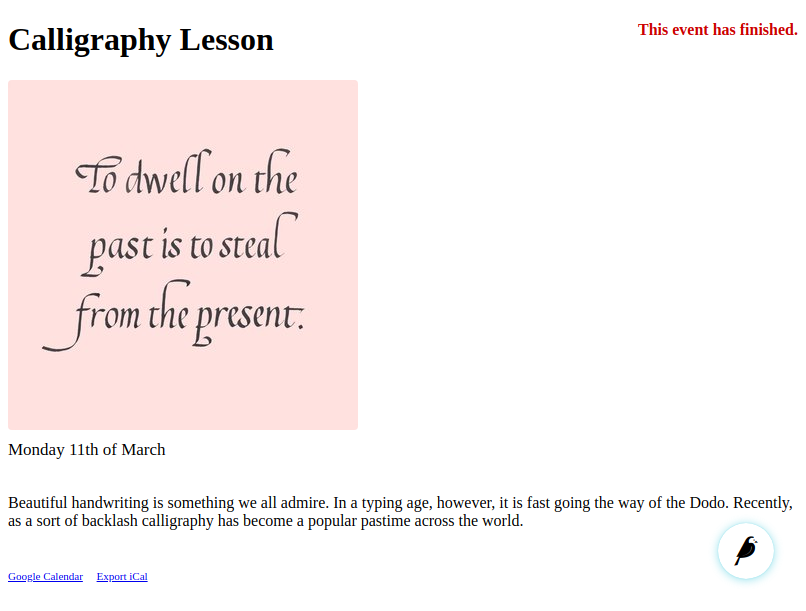
JOYOUS_THEME_CSSincludes a theme CSS file into each Joyous page. You could do the same thing by overriding the Joyous templates (which we will look at later), but this is easier. We’ve chosen the forest theme file for a green palette.JOYOUS_HOLIDAYSadds holiday names onto our calendar. We’ve chosen the holidays of"Scotland". For the holidays of a state, province or region add it in square brackets after the country name, e.g."Canada[NS]". Multiple countries and regions can be listed separated by commas or by using*as a wildcard. See python-holidays for all the countries and regions that are supported.JOYOUS_DATE_FORMATfor dates like “Monday 11th of March”.JOYOUS_DATE_SHORT_FORMATfor short dates like “11 Mar”.JOYOUS_TIME_FORMATfor times like “9am”.JOYOUS_TIME_INPUTallows the editor to enter times in the 12 hour format, e.g. 9am.
The following Django settings are also important. Make sure they are set to values that are correct for you.
USE_TZ = True
TIME_ZONE = "Europe/London"
USE_I18N = True
USE_L10N = True
LANGUAGE_CODE = 'en-uk'
- Joyous uses timezone-aware datetimes, so
USE_TZmust be set to True. If it is not you will get an error likelocaltime() cannot be applied to a naive datetimewhen trying to view a calendar. TIME_ZONEsets the default timezone that Django uses. Wagtail also allows an editor to change their time zone for the Wagtail admin interface using the Account Settings | Current time zone panel.USE_I18Nturns on the Django translation system. If you only ever want to display English you could set it toFalse, but you might as well set it toTruein case you ever want to display your website in another language.USE_L10Nenables Django’s localized formatting of numbers and dates.JOYOUS_DATE_FORMAT,JOYOUS_DATE_SHORT_FORMAT,JOYOUS_TIME_FORMAT, andJOYOUS_FIRST_DAY_OF_WEEKoverride Django’s formatting, but if they were not set then Joyous dates and times would be formatted according to the current locale. See your django/conf/locale directory to find these format files. If you want, you can create your own custom format.LANGUAGE_CODEsets the default locale that Django will use.
- Joyous uses timezone-aware datetimes, so
Start your server
$ ./manage.py runserverAnd, have a look at your calendar and events.
Templates
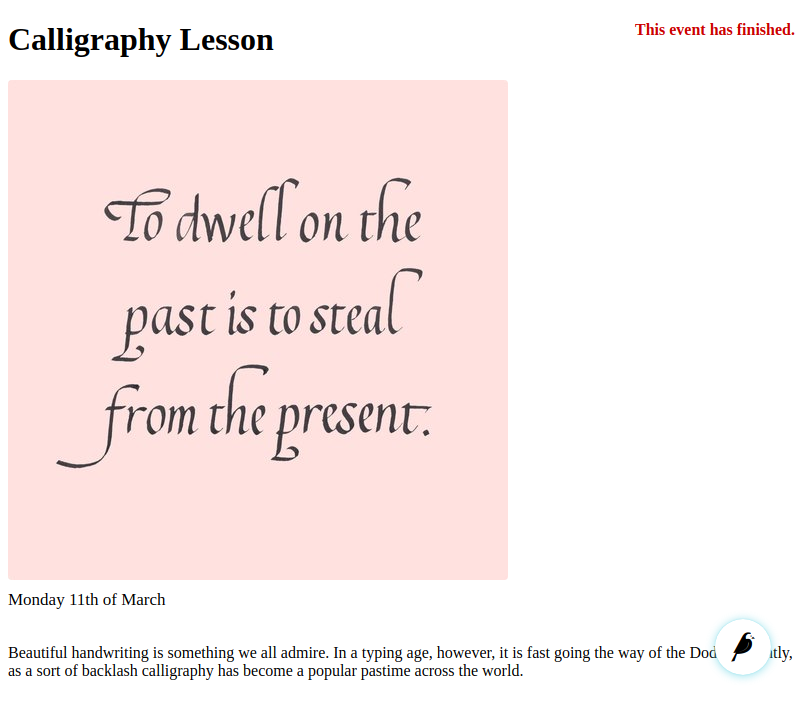
Now, say you don’t want to display the download links, and want bigger images on your event pages. You can do this by overriding the Joyous templates. And, you can use template inheritance to override just the particular blocks you want to change. E.g. just override the footer.
Create a
templates/joyousdirectory in your app.Add the following files to your this directory. This will replace the download links in the footers of the calendars and events.
calendar_base.html{% extends "joyous/calendar_base.html" %} {% block cal_footer %}{% endblock cal_footer %}calendar_list_upcoming.html{% extends "joyous/calendar_list_upcoming.html" %} {% block cal_footer %}{% endblock cal_footer %}event_base.html{% extends "joyous/event_base.html" %} {% block event_footer %}{% endblock event_footer %}Edit
event_base.htmland override theevent_imageblock for a larger image. (Don’t forget that you need to loadwagtailimages_tagsto use theimagetag.)event_base.html{% extends "joyous/event_base.html" %} {% load wagtailimages_tags %} {% block event_footer %}{% endblock event_footer %} {% block event_image %} {% if page.image %} <div class="joy-img"> {% image page.image width-500 class="joy-img__img" %} </div> {% endif %} {% endblock event_image %}Also
postponement_page_from.htmlhas its own definition ofevent_image(because it displays the image of the original event not the postponement) so, for completeness, add an override for that too.postponement_page_from.html{% extends "joyous/postponement_page_from.html" %} {% load wagtailimages_tags %} {% block event_image %} {% if overrides.image %} <div class="joy-img"> {% image overrides.image width-500 class="joy-img__img" %} </div> {% endif %} {% endblock event_image %}Have another look at your calendar and events. Notice how the export links are gone and the images are larger.
I hope that this tutorial was useful.